
Your gateway IP address is usually your router’s address, and you can find it in under a minute on Windows, Mac, or Android. On Windows, the command ipconfig shows the “Default Gateway” field [source: Microsoft]. On Mac and Android, it is hiding in network settings, because of course it is.
TLDR: On Windows, open Command Prompt and type ipconfig. On Mac, open System Settings, pick your Wi-Fi, and look for Router. On Android, open your Wi-Fi network details and look for Gateway or Router. Example: if your gateway is 192.168.1.1, typing that into a browser often opens your router login page, which can save 5 to 10 minutes of guessing when Wi-Fi acts weird.
What Is a Gateway IP Address?
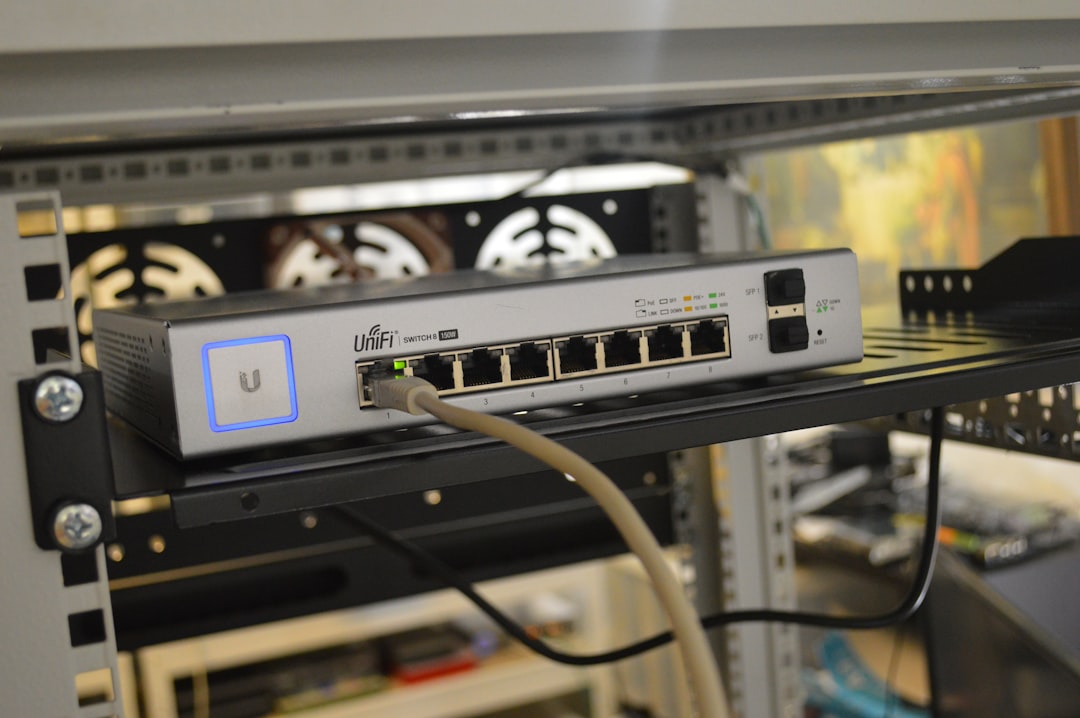
Think of your gateway as the front door of your home network.
Your phone, laptop, smart TV, and game console all talk to it. Then it talks to the internet. Most of the time, your gateway is your Wi-Fi router.
Common gateway IP addresses look like this:
- 192.168.0.1
- 192.168.1.1
- 10.0.0.1
- 172.16.0.1
If your internet is acting grumpy, this number helps. You can use it to log into your router. You can check settings. You can change Wi-Fi names. You can restart things without crawling under a desk like a cave goblin.
How to Find Your Gateway IP Address on Windows
Windows gives you a fast way. It looks a bit old-school. But it works.
- Press Windows + R.
- Type cmd.
- Press Enter.
- Type ipconfig.
- Press Enter.
- Find Default Gateway.
You may see a few blocks of text. Look for the one that matches your active connection. If you use Wi-Fi, check under Wireless LAN adapter Wi-Fi. If you use a cable, check under Ethernet adapter.
Your gateway might look like this:
Default Gateway . . . . . . . . . : 192.168.1.1
That is the number you want.
Honestly, it feels like Windows could show this in one big friendly button. Instead, we get a black box and a wall of text. Still, once you know where to look, it takes about 20 seconds.
Image not found in postmetaHow to Find Your Gateway IP Address on Mac
Mac hides the gateway under the word Router. Same thing. Different name. Classic.
Here is the simple path:
- Click the Apple menu.
- Open System Settings.
- Click Wi-Fi.
- Click Details next to your connected network.
- Click TCP/IP.
- Look for Router.
The number beside Router is your gateway IP address.
Example:
Router: 192.168.0.1
Older Macs may use System Preferences instead of System Settings. If so, go to Network, choose your connection, then click Advanced. After that, pick TCP/IP.
The wording changes. The goal does not. Find Router. Grab the number.
How to Find Your Gateway IP Address on Android
Android is where things get mildly annoying. Each phone brand moves the menus around a little. Samsung, Pixel, OnePlus, Motorola. Same idea. Different labels.
Try this first:
- Open Settings.
- Tap Network & Internet or Connections.
- Tap Wi-Fi.
- Tap your connected Wi-Fi network.
- Look for Gateway, Router, or IP settings.
On some Android phones, you may need to tap a small gear icon beside the Wi-Fi name. Then open Advanced or View more.
Your gateway may show as:
Gateway: 192.168.1.1
If you do not see it, switch IP settings from DHCP view to advanced details. Do not save changes unless you know what you are changing. Just peek. Then back out.

Windows vs Mac vs Android: Quick Comparison
| Device | Where to Look | Label You Need | Speed |
|---|---|---|---|
| Windows | Command Prompt | Default Gateway | Very fast |
| Mac | Wi-Fi Details | Router | Easy |
| Android | Wi-Fi Network Details | Gateway or Router | Varies by phone |
What Can You Do With the Gateway IP?
Once you have the gateway IP, type it into a browser address bar. Not Google. The address bar at the top.
For example:
http://192.168.1.1
This may open your router login page. From there, you can often:
- Restart the router.
- Change your Wi-Fi name.
- Update your Wi-Fi password.
- Check connected devices.
- Set parental controls.
- Fix basic network issues.
You will need the router admin username and password. These are not always the same as your Wi-Fi password. Check the sticker on the router. Or ask the person who set it up. If that person was you from five years ago, good luck. We have all been there.
Simple Troubleshooting Tips
- No gateway shown? Your device may not be connected to Wi-Fi.
- Gateway starts with 169.254? Your device likely failed to get a proper network address.
- Router page will not open? Try adding http:// before the number.
- Wrong network? Disconnect from VPNs or guest Wi-Fi and try again.
- Still stuck? Restart the router and device.
The gateway IP is a tiny number with a big job. Windows calls it Default Gateway. Mac calls it Router. Android may call it either one. Find it once, and the whole network feels a little less mysterious.


