Selecting the right wallpaper for your Mac app isn’t just about aesthetics—it’s about optimizing your workspace for both productivity and inspiration. Whether you’re a designer, a developer, or a professional who spends several hours a day in front of a screen, the wallpaper you choose influences not just mood but also how you interact with your Mac’s interface. With countless options available and diverse user preferences, it can be difficult to determine what works best.
TLDR
Choosing the perfect Mac app wallpaper involves more than selecting a pretty picture. Aim for clarity, subtlety, and thematic alignment with your workflow. Avoid cluttered or overly bright images that may distract or make icons hard to see. Take into consideration resolution, aesthetic harmony, and your own psychological response to visuals.
1. Consider Your Screen Resolution and Display Type
Your Mac’s display quality is likely one of the best in the industry, particularly if you’re using a Retina display or a newer Apple Silicon Mac. A wallpaper that looks good on a 1080p screen might appear blurry or pixelated on a high-resolution monitor.
- Choose wallpapers that are at least as large as your screen’s native resolution. For Retina displays, this means 2880×1800 or higher.
- Look for high-definition (HD) or ultra-high-definition (UHD) images to maintain crispness and avoid scaling artifacts.
- Avoid stretching small images to fit your screen. This degrades quality and can make your interface look unprofessional.
Using the proper resolution ensures that icons remain sharp, text remains readable, and that the entire environment feels seamless and premium.
2. Prioritize Clarity and Minimalism
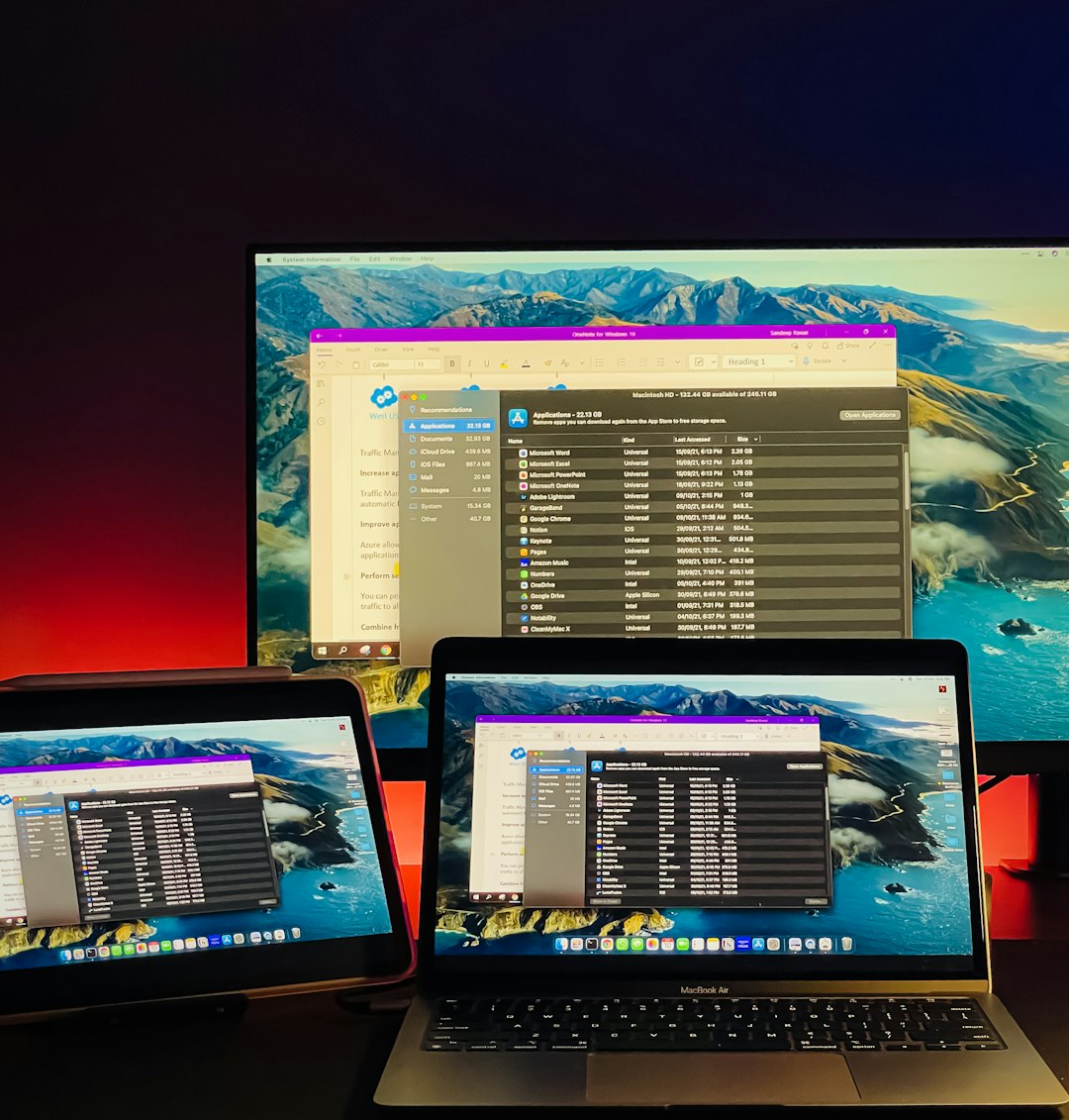
Busy wallpapers with excessive detail or contrast can interfere with your workflow. This is especially true when trying to locate icons or interact with elements in Mission Control or Launchpad.
Minimal, flat-style designs often work best as they reduce visual noise. Backgrounds that involve a soft gradient, subtle patterns, or pastel colors help your desktop feel lighter and more accessible.
- Avoid highly saturated images or ones with text and logos unless it serves a specific branding purpose.
- Keep contrast in mind. Dark wallpapers can enhance focus but reduce visibility under bright lighting conditions. Conversely, light wallpapers can glare under dim settings.
If productivity is paramount, a low-stimulation background can help keep distractions at bay while enhancing focus during prolonged sessions.
3. Align the Wallpaper with Your Workflow
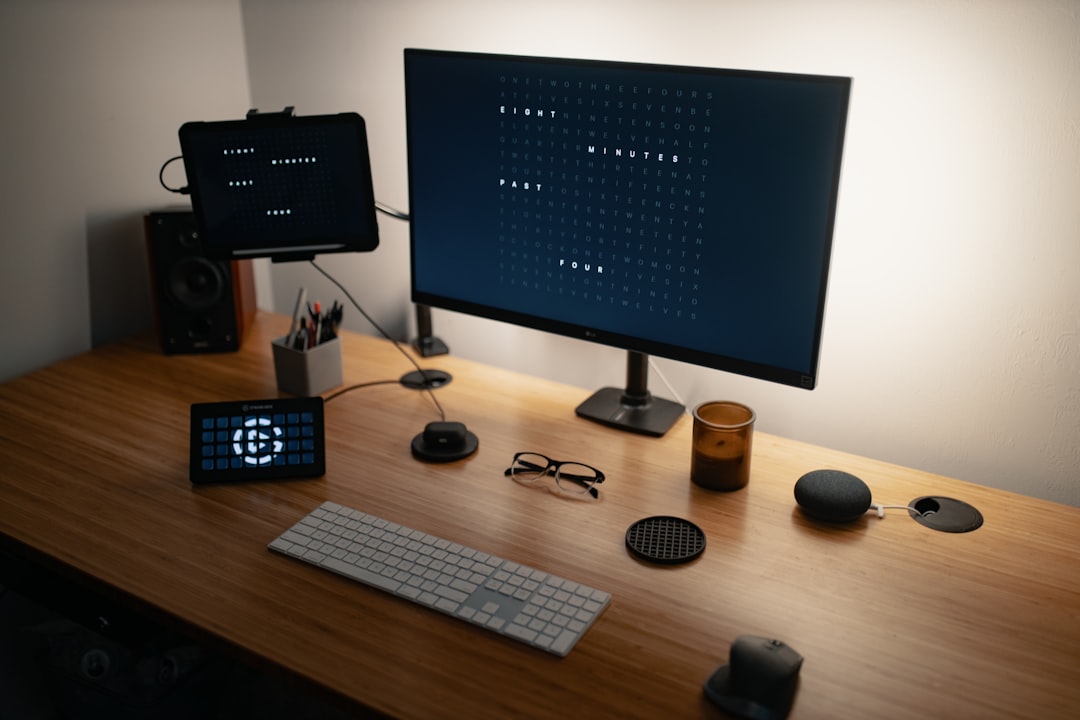
Different work environments and applications benefit from different wallpaper aesthetics. Consider how the desktop image interacts with the type of work you do. For instance, developers and coders may benefit from dark themes and corresponding dark wallpapers to reduce eye strain, while designers may prefer bright, inspiration-rich visuals.
- Coding & Analysis: Monochrome or dark wallpapers reduce eye fatigue and integrate well with most IDEs and terminal windows.
- Design & Creative Work: Use high-contrast or thematic images that reflect design trends or inspire mood boards.
- Everyday Use: Choose calming nature scenes or soothing abstract forms that promote focus over the long term.
The synergy between your wallpaper and your software environment can play an integral role in boosting productivity and fostering creativity.
4. Consider Dynamic Wallpapers
Dynamic wallpapers are a unique macOS feature that allows your background to shift subtly throughout the day based on location and time. This can make your desktop more engaging and can reduce eye strain depending on the hour.
Benefits include:
- Day-to-night transitions that mimic natural lighting rhythms.
- A sense of time and progression, ideal for those who work long hours.
- Customization opportunities using custom-made dynamic wallpaper tools.
However, not all users find dynamic wallpapers helpful. If your focus suffers from changing visuals, a static background might serve you better.
5. Think About Psychological Effects
Colors and visual arrangements can unconsciously affect our minds. For high-performance tasks, choosing the right color and theme can improve your mental state, efficiency, and even posture.
- Blues and Greens: Promote calmness, focus, and trust. Excellent for workspaces where clarity and persistence are key.
- Oranges and Yellows: Energizing and optimistic, suitable for creative and collaborative environments.
- Greys and Earth Tones: Grounding and professional, perfect for conservative or corporate users.
Experiment with different wallpaper themes over time to evaluate how each affects your output and stress levels. Many users are surprised at how a simple background change can uplift the mood or declutter the brain.
6. Organize Using Multiple Desktops
macOS lets you create multiple desktops using Mission Control, each of which can have its own wallpaper. This feature can be creatively used to enhance your productivity by associating visual stimuli with specific tasks:
- Use a calm, blue-toned wallpaper for your work desktop, indicating a zone of focus.
- Choose a vibrant, colorful image for creative pursuits on a separate desktop.
- Reserve soothing scenes or inspirational quotes for breaks and personal time.
This method aids mental compartmentalization, helping your brain switch modes efficiently and stay focused in the right context.
7. Use Reliable Sources and Consider Licensing
When downloading wallpapers, it’s important to ensure they’re sourced from trustworthy platforms. Some websites embed malware into downloads or have deceptive licensing terms that put you at risk.
Recommended sources include:
- Unsplash – High-res, royalty-free wallpapers curated by photographers.
- Wallhaven – A deep library of themed wallpapers with community-driven content.
- InterfaceLIFT – Great for scenic and landscape imagery tailored to Mac resolutions.
Always read user agreements and licensing details before downloading. This ensures that you’re respecting copyright laws and aren’t compromising your Mac’s security.
8. Don’t Be Afraid to Customize
Your ideal wallpaper doesn’t have to be a downloaded image. Personalized options can mean more to you and often provide a greater psychological boost:
- Use a family photo or a shot from your last vacation for motivation and relaxation.
- Create mood boards from your own design projects or inspirations.
- Add soft overlays or color filters using image editing tools to better match your overall macOS theme style.
Apple’s built-in Photos app and Preview tools make minor adjustments simple, while third-party tools like Pixelmator or Affinity Photo give you deeper customization control.
Conclusion
Choosing the perfect Mac app wallpaper requires a thoughtful blend of technical knowledge, visual taste, and practical needs. From screen resolution to psychological effects, each element plays a role in how your workspace feels and functions. Take the time to test out different styles and themes—your desktop environment directly impacts your mental state and professional productivity. Ultimately, the ideal wallpaper isn’t just good to look at—it should help make your entire Mac experience smoother, calmer, and more effective.