The Garmin Venu 3 is not only a powerful smartwatch equipped with state-of-the-art fitness and health tracking capabilities, it’s also a fashion-forward wearable designed to adapt to your personal style. One of the easiest and most fun ways to personalize your Venu 3 is by changing its watch face. Whether you’re into minimalist designs, data-rich displays, or digital artwork, Garmin offers plenty of options to help you make your watch truly yours.
TL;DR – Too Long, Didn’t Read
Changing the watch face on your Garmin Venu 3 is super simple and highly customizable. You can choose from preloaded styles, download new ones from the Connect IQ Store, or even create your own. Whether you’re looking for elegance, data, or creativity, there’s a watch face for every mood and occasion. Follow a few easy steps, and your watch will get a fresh new look in minutes!
Why Change the Watch Face?
Before diving into the how-to, it’s worth quickly exploring why someone might want to switch things up. Watch faces on a smartwatch like the Venu 3 aren’t just cosmetic—they can affect your experience by:
- Enhancing usability: Some faces show more health metrics or allow quicker access to apps.
- Reflecting your personality: Show off your creativity or mood depending on the day.
- Improving visibility: Prefer a bold digital time or an analog classic? It’s your call.
Ways to Change the Watch Face on Garmin Venu 3
There are a few methods to install or change a new watch face. You can do it directly through the watch itself or use the Garmin Connect app on your phone. Let’s look at both.
Method 1: Change Watch Face Directly from the Garmin Venu 3
- Wake up the watch by tapping or pressing any button.
- Touch and hold the display until the menu appears.
- Tap on “Watch Face.”
- Swipe left or right to scroll through existing options.
- Select a face you like and tap “Apply.”
- Many watch faces allow further customization—just tap “Customize” before applying to tweak colors, data fields, and more.
This method is fast and effective when you simply want to pick between built-in face options available right on your device.
Method 2: Use the Garmin Connect App
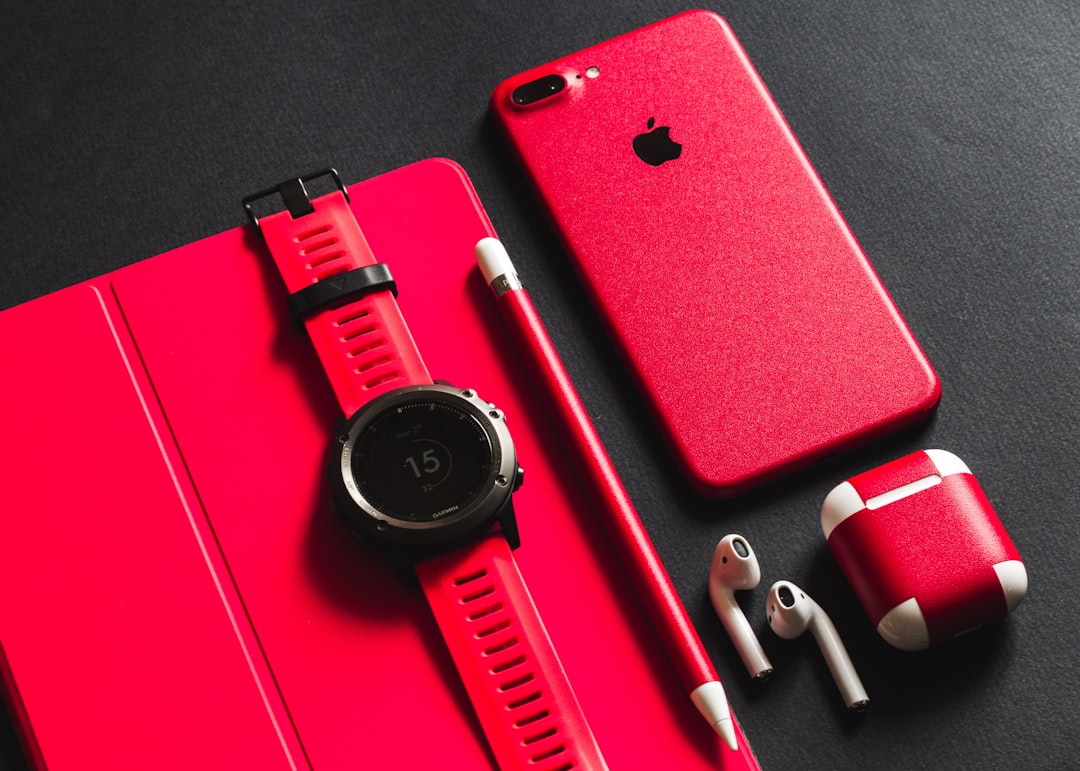
If you’re looking to download new and exciting watch faces, then your smartphone and the Garmin Connect app will be your best friends.
- Open the Garmin Connect app on your smartphone.
- Tap on your device image, usually visible at the top of the screen.
- Select “Appearance.”
- Then choose “Watch Faces.”
- You’ll see both the installed and available options. To find more, tap “Get More Watch Faces.”
- The app will redirect you to the Connect IQ Store, where you can explore hundreds of free and premium designs.
- Click “Download” on the watch face you like and sync your device to install it.
Exploring the Connect IQ Store
The Connect IQ Store is your gateway to a massive library of custom-developed watch faces. Developers from all over the world contribute to this platform, so you’ll find options ranging from sporty to artistic, minimal to data-packed.
Popular Categories Include:
- Fitness-centric: Displays steps, heart rate, calories, and weather at a glance.
- Analog styles: Traditional clock designs with a modern twist.
- Theme-based: Based on seasons, movies, sports teams, or famous landmarks.
- Dynamic faces: Some even adapt and change based on your activities throughout the day.
Pro Tip:
Ratings and number of downloads are usually good indicators of popularity and stability. Look at user reviews as well to judge how well a face performs and whether it consumes battery heavily or runs smoothly.
How to Customize Your Watch Face Further
Many of the more advanced watch faces offer the ability to personalize elements such as:
- Color themes
- Displayed metrics (heart rate, step count, battery life, etc.)
- Font sizes and styles
- Analog or digital time
To access these options:
- Select the watch face on your Garmin Venu 3.
- Tap “Customize” before applying it.
- Use the touch interface to modify according to your preferences.
Customization makes sure that your watch not only looks good but also functions in a way that complements your daily routines.
What to Do if a Watch Face Causes Issues
Not all watch faces are created equal. Occasionally, a third-party face might cause glitches or faster battery drain. If you notice performance issues:
- Switch back to a default Garmin face to test performance.
- Uninstall the glitchy face via the Garmin Connect app.
- Check for app updates or look for an alternative with better ratings.
To remove a watch face:
- Go to the Connect IQ Store via Garmin Connect app.
- Select “My Device.”
- Navigate to installed watch faces and tap “Remove.”
Can You Create Your Own Watch Face?
Yes! Tech-savvy users can build their own personalized watch faces using Garmin’s Face It app. This app enables you to add custom images as a background and overlay time and data widgets. Just follow these steps:
- Download the Face It app from your smartphone’s app store.
- Open the app and choose a background image from your gallery or take a new photo.
- Select the clock style, widgets, and data you want displayed.
- Save and sync your creation to your Garmin Venu 3 via Bluetooth.
It’s a cool way to add an extra layer of personality—think vacation photos, favorite pets, or artistic backgrounds.
Final Thoughts
The Garmin Venu 3 makes it incredibly easy to switch up your style and optimize functionality through watch faces. Whether you’re reflecting your mood, boosting your workout efficiency, or matching your outfit, these endless customization options make your Venu 3 a truly personal gadget.
So go ahead and experiment. Try something quirky, something professional, or even something animated. Your wrist deserves to be as expressive as you are!